
Meta Pixel and Conversions API: Setup Guide for Shopify and WooCommerce (2026)
If Meta can’t see what’s selling, it can’t find you more buyers. This guide shows how to set up your tracking correctly—and verify that it’s actually working.
- What the Meta Pixel and Conversions API do
- Why you need both (and how deduplication works)
- How to set up on Shopify and WooCommerce
- How to improve Event Match Quality
- A checklist for testing your integration
Meta's optimization algorithms are only as smart as the data you feed them. When ad blockers, browser privacy settings, or slow-loading pages prevent the Meta Pixel from firing, your reported ROAS suffers, and you end up making decisions based on incomplete data. In 2026, relying on the browser-side Pixel alone is no longer a viable strategy.
This guide breaks down what the Meta Pixel and Conversions API (CAPI) do, how to set them up on Shopify and WooCommerce, and how to confirm your sales data is being reported accurately.
What is the Meta Pixel?
The Meta Pixel is a snippet of JavaScript code that lives on your website. It tracks visitor actions—like viewing a product, adding an item to the cart, or completing a purchase—and sends this data from the user's browser directly to Meta. These events are crucial for ad reporting, audience building, and campaign optimization.
The challenge, however, is that browser-based tracking is increasingly unreliable. Ad blockers, privacy-focused browsers like Safari (with ITP) and Firefox, and network issues can all prevent the Pixel from collecting and transmitting data.
What is the Conversions API (CAPI)?
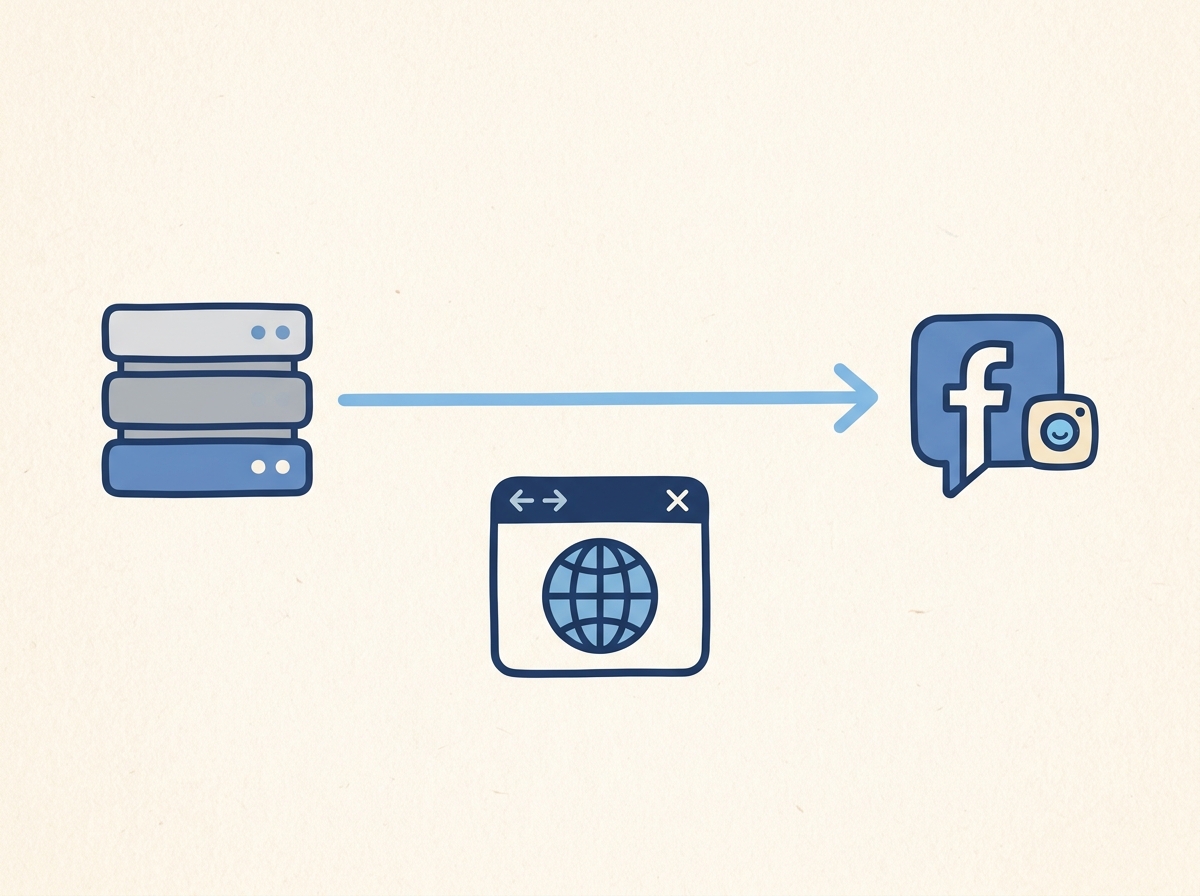
The Conversions API provides a more stable, server-to-server channel for sending the same important events to Meta. Instead of relying on the visitor's browser, CAPI sends event data directly from your server (or your e-commerce platform's server) to Meta's. This bypasses the limitations of browser-based tracking, filling in the data gaps left by the Pixel.
Why do you need both Pixel and CAPI?
For the most robust tracking setup, Meta recommends using both the Pixel and the Conversions API simultaneously. To prevent overcounting when a single purchase is reported by both channels, you must implement event deduplication. This is done by sending an identical event_id for the same action from both the Pixel and CAPI. When Meta receives two events (e.g., a "Purchase" event) with the same name and event_id, it processes the one that arrives first and discards the second, as explained in their business help center documentation.
Heads up: If the number of purchases reported in Meta Ads Manager is significantly higher than your actual store orders, your deduplication setup is likely broken or missing.
How do you set up the Pixel and Conversions API?
For most e-commerce stores, partner integrations are the simplest way to get started. Here’s a breakdown of the common methods:
| Setup Method | Effort | Best For |
|---|---|---|
| Shopify - Facebook & Instagram app | Low (clicks only) | Shopify stores |
| WooCommerce - official Meta plugin | Low | WordPress/WooCommerce stores |
| Meta Conversions API Gateway | Medium (requires cloud hosting) | Custom websites without a partner integration |
| Server-side Google Tag Manager | Medium-High | Sites already using sGTM for multiple platforms |
| Direct API Integration | High (requires a developer) | Custom apps, CRMs, or offline sales data |
Setting Up on Shopify
The official "Facebook & Instagram" app by Meta is the recommended path for Shopify stores. You can find it on the Shopify App Store.
- Install the Facebook & Instagram app from the Shopify App Store.
- Follow the setup prompts to connect your Facebook account, Business Portfolio, Facebook Page, ad account, and Pixel (now called a dataset).
- In the app's data sharing settings, select the "Maximum" level. This enables the Conversions API with the highest level of data matching.
- Important: If you previously installed the Pixel by pasting code into your theme files, remove it now to prevent sending duplicate events. The app handles everything.
- Place a test order to verify the integration in Meta Events Manager.
Setting Up on WooCommerce
For WordPress sites using WooCommerce, the official Meta for WooCommerce plugin is the way to go.
- From your WordPress dashboard, install the official Meta for WooCommerce plugin.
- During setup, connect your Meta business assets as prompted.
- Ensure the Conversions API option is enabled within the plugin's settings.
- Deactivate any other Pixel-related plugins or remove custom code snippets to avoid conflicts.
- Run a test purchase and check the results in Events Manager.
Improving Event Match Quality
Event Match Quality (EMQ) is a crucial diagnostic score in Events Manager, rated from 1 to 10. It indicates how effectively Meta can link your server-side events to actual user profiles. A higher score leads to more accurate reporting and better ad optimization.
How to Improve Your Event Match Quality Score
To boost your EMQ, you need to pass more consented customer information with your server events. This data helps Meta pinpoint the user who completed the action.
- With user consent, send hashed customer parameters like email, phone number (including country code), first and last name, and address details.
- Ensure the browser's
_fbp(browser ID) and_fbc(click ID) cookies are passed along with your server events. The official integrations handle this automatically. - Send events as close to real-time as possible. Delays can lower match rates.
Verifying and Testing Your Setup
Never assume your tracking is working. Use Meta's tools to confirm data is flowing correctly.
Testing Checklist in Events Manager
- Navigate to Events Manager in your Meta Business Portfolio and select your dataset.
- Go to the Test Events tab. Enter your website URL and place a test order.
- As you move through the funnel, you should see events populate in real-time. Confirm that the final "Purchase" event is received from both Browser and Server and is correctly marked as Deduplicated.
- Check the Diagnostics tab for any warnings or errors and follow the instructions to resolve them.
- After running ads for a few days, compare the purchase numbers in Ads Manager to your store’s actual order count to spot any major discrepancies.
Frequently asked questions
Do I still need the Meta Pixel if I use the Conversions API?
Yes. Meta's official recommendation is to use both together. The Pixel provides valuable browser-level signals and user context, while CAPI ensures reliability. The combination gives Meta the most complete picture for optimization.
What is event deduplication?
Event deduplication is Meta's process for ensuring that a single conversion isn't counted twice when it's sent from both the browser (Pixel) and the server (CAPI). It relies on a unique `event_id` being sent with both events for Meta to recognize and discard the duplicate.
What is a good Event Match Quality score?
While higher is always better, a score of 6.0 or above is generally considered good. The key is to send as much consented customer information as possible (hashed email, phone, name) to help Meta match server events to user profiles.
Is the Conversions API free?
Yes, using the Conversions API itself is free. However, some implementation methods may have associated costs. For example, hosting your own Conversions API Gateway on a cloud provider like AWS will incur hosting fees.
How do I know if my Pixel is working correctly?
Use the "Test Events" tool in Meta Events Manager. While you place a test order on your site, you can watch events come in from both the browser and server in real-time and check for deduplication. Also, regularly check the "Diagnostics" tab for any errors.