
Facebook Ad Account Disabled or Restricted? How to Fix It (2026 Guide)
A disabled ad account can bring your campaigns to a dead stop. This guide explains how to identify the cause, navigate the appeal process correctly, and avoid the common mistakes that can make the situation worse.
- The difference between a restricted and a disabled account
- The main reasons Meta disables ad accounts
- A step-by-step guide to fixing a disabled Facebook ad account
- Critical mistakes to avoid during the review process
- How to prevent your ad account from being restricted in the future
There are few things more disruptive for a digital marketer than the notification: "Your ad account has been restricted." Ads halt, sales pipelines dry up, and the reason provided by Meta can often feel frustratingly unclear. For a fashion brand with significant daily ad spend, this isn't just an inconvenience—it's a direct hit to the bottom line. Most restrictions, however, are reversible if you follow the correct procedure. This guide breaks down why these issues occur, the precise steps to resolve them, and how you can safeguard your account against future interruptions.
What Is the Difference Between a Restricted and a Disabled Account?
Meta can apply restrictions to various assets, and understanding the specific limitation is the first step to resolving it:
| What Is Restricted | What It Means for You |
|---|---|
| An ad account | This specific ad account is blocked from running ads. Other accounts within your Business Portfolio might still be active. |
| Your personal profile | You are personally barred from managing ads on any account until the restriction on your profile is lifted. |
| A Business Portfolio | This is more severe, affecting all ad accounts and assets housed within that portfolio. |
| A single ad | Only one specific ad has been rejected. This serves as a warning, but your account remains active. |
Why Does Meta Disable Ad Accounts?
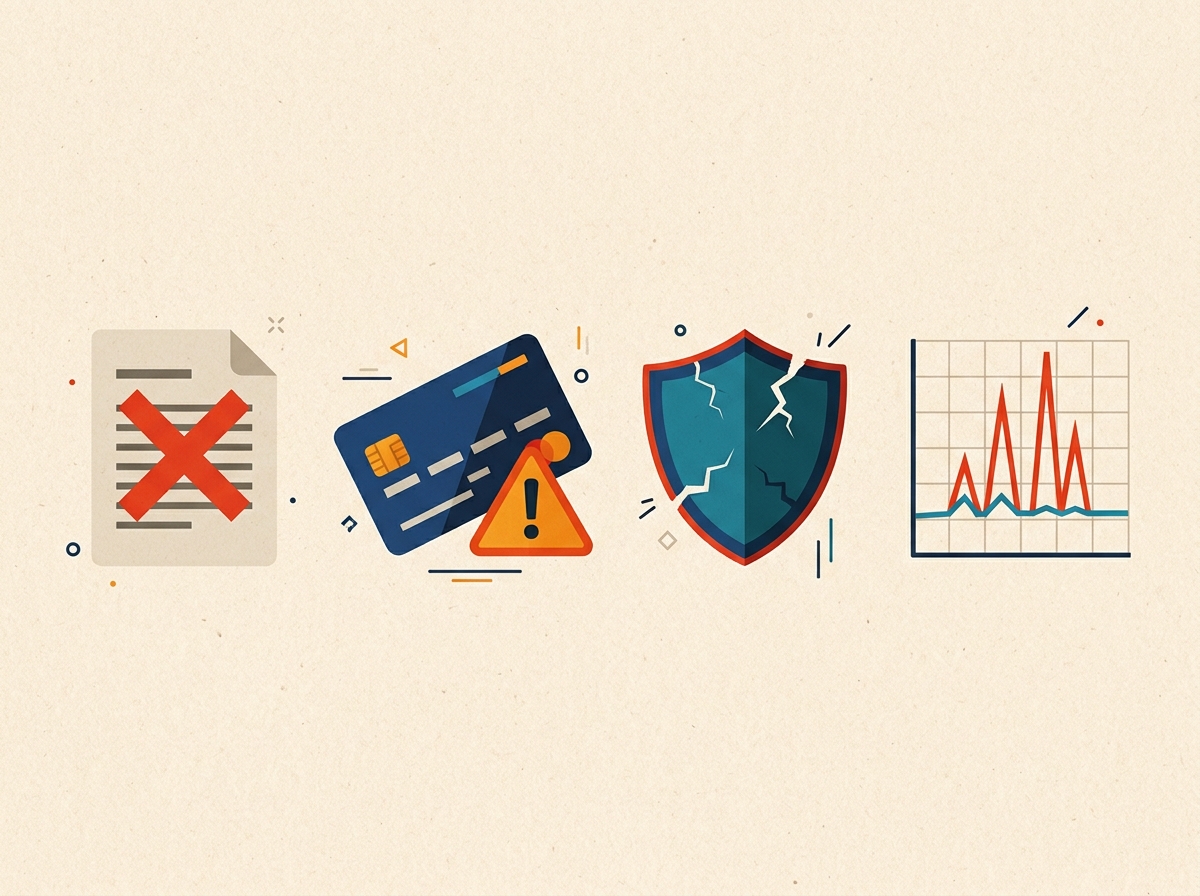
Restrictions are usually triggered by automated systems detecting patterns that violate policies or suggest a security risk. Here are the most common culprits.
1. Advertising Policy Violations
This is the most frequent cause. It includes repeated ad rejections for misleading claims (e.g., "Drop 10 kg in one week"), promoting prohibited or restricted products, using before-and-after images for sensitive topics, or using ad copy that implies personal attributes about the audience (e.g., "Struggling with debt?"). For a full breakdown, review Meta's advertising policies.
2. Payment Problems
Your payment history is a key trust signal. Issues like failed payment attempts, an outstanding balance, a credit card flagged as suspicious by the bank, or using multiple different payment methods in a short period can all trigger an account restriction.
3. Security and Compromised Accounts
Meta acts swiftly to lock down assets when it suspects an account has been compromised. This can be triggered by logins from unusual geographic locations, evidence of a hacked admin profile, or multiple people accessing the account from a single shared login.
4. Unusual Activity
Sudden, drastic changes in account behavior can raise red flags. This includes a brand-new ad account that immediately attempts to spend a large budget, abrupt shifts in the types of products or services being advertised, or using landing pages that employ cloaking (showing a different version to Meta's reviewers than to users).
How Can You Fix a Disabled Facebook Ad Account?
Navigating the review process requires precision and patience. Follow these steps methodically.
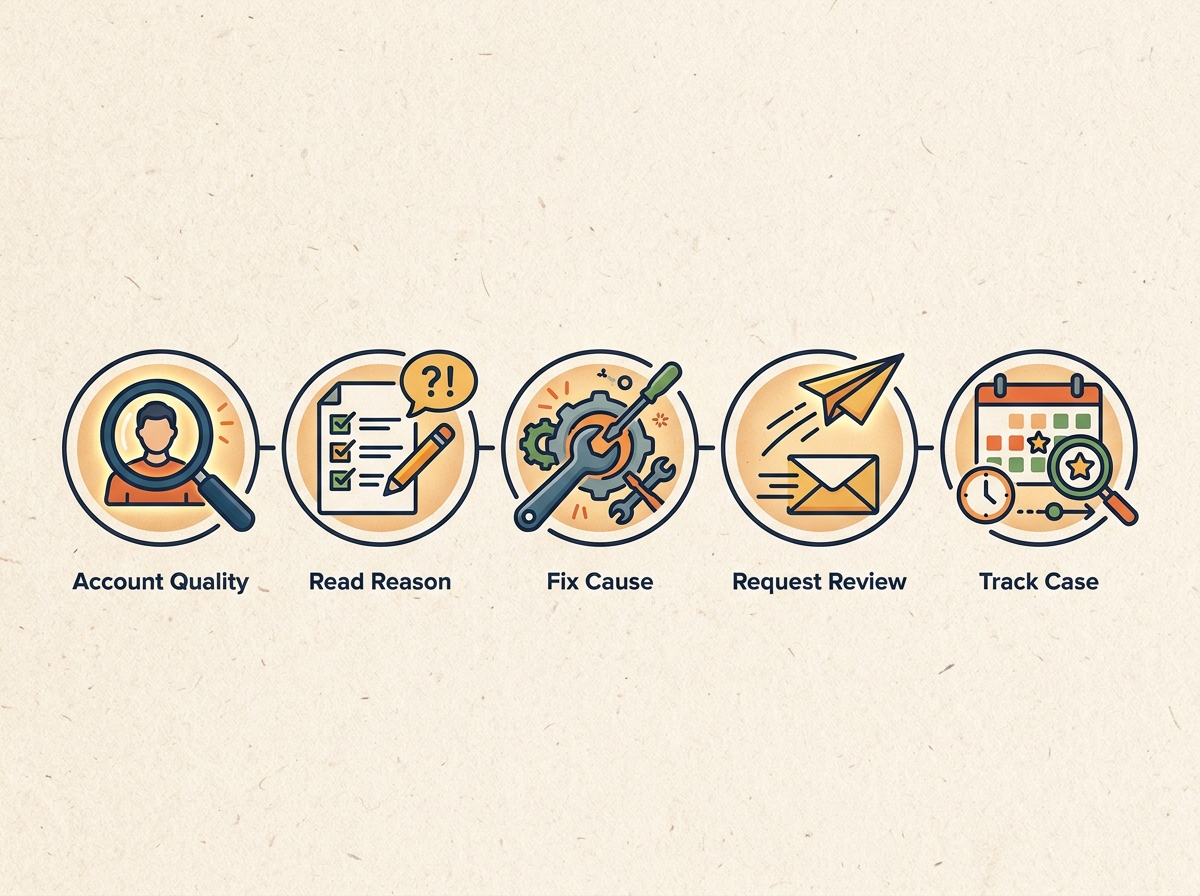
- Go to Account Quality. Your first and most important destination is the Account Quality page within Meta Business Suite. This dashboard provides a centralized view of all restricted assets and the reasons behind the restrictions.
- Understand the Exact Reason. Click on the specific ad account or profile that has been restricted. The dashboard will display the policy that was violated or the issue that was flagged.
- Resolve the Root Cause First. Before you appeal, you must address the underlying problem. This could mean editing or deleting rejected ads, paying off an outstanding balance, updating your payment method, or securing a compromised profile by changing the password and enabling two-factor authentication.
- Click "Request Review". Once you've fixed the issue, a "Request Review" button will typically become available. Only admin users can submit an appeal. In your explanation, be brief, factual, and professional. Explain what happened and what steps you took to correct it.
- Complete Any Required Verification. Meta may require you to verify your identity by uploading a government-issued ID or provide documentation to verify your business. Ensure the details you provide are accurate and match your account information.
- Track the Support Case. You can monitor the status of your appeal in Account Quality or under your support cases. While many decisions are made within 48 hours, some can take longer.
- Restart Your Campaigns Carefully. Once your account is reinstated, don't immediately ramp up your budget to previous levels. Gradually turn your campaigns back on and monitor them closely for a few days to avoid triggering another automated flag.
What if Your Review Is Rejected?
Read the final decision to understand why. If a second appeal is offered, only use it if you have significant new information to provide. If you work with a Meta Marketing Partner, they may have access to a dedicated support channel and can help escalate the case.
What Are the Critical Mistakes to Avoid?
In a moment of panic, it's easy to make things worse. Avoid these common mistakes:
- Don't create new ad accounts or Business Portfolios. Trying to circumvent a restriction is a serious policy violation and can lead to permanent bans on your personal profile and business assets.
- Don't submit multiple appeals for the same issue. This can clog up the support queue and won't speed up your review.
- Don't be rude or aggressive in your appeal. Keep your communication professional and to the point.
- Don't trust unofficial "Meta support" agents. Scammers often target advertisers with phishing messages. Meta will never ask for your password or payment details in an email or direct message. All official actions take place within the Business Suite.
How Can You Prevent Future Account Restrictions?
The best strategy is prevention. By maintaining a healthy and secure account, you can minimize the risk of automated flags and disruptions.
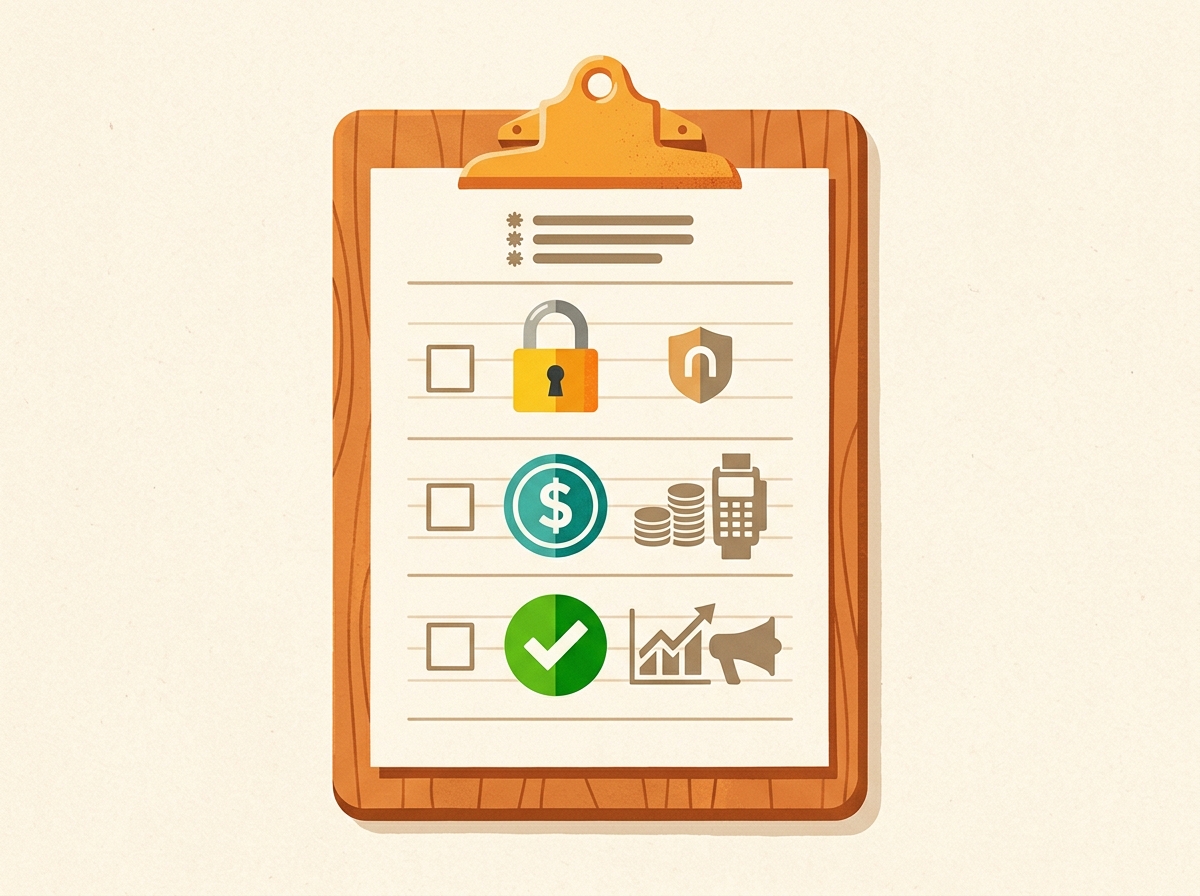
Account Security Checklist
- Enable two-factor authentication for all admins.
- Maintain at least two trusted admins on your Business Portfolio and avoid sharing logins.
- Regularly remove former employees and agency partners from your accounts.
Payment Integrity Checklist
- Use one primary, reliable payment method and have a backup configured.
- Address any outstanding balances immediately and monitor billing notifications from Meta.
Ad and Website Compliance Checklist
- Avoid exaggerated claims related to health, income, or results, especially with before-and-after imagery. For guidance, see our article on Facebook Ads Best Practices.
- Ensure your landing pages are high-quality and feature clear contact information, a privacy policy, and terms of service.
- When an ad is rejected, review the policy feedback and fix the issue rather than simply re-uploading the same creative.
- Scale spend on new ad accounts gradually. A sudden, massive budget increase can be mistaken for suspicious activity.
Finally, make it a habit to check your Account Quality page weekly. A few rejected ads can act as an early warning system, giving you a chance to correct your course before a more serious restriction is applied.
Frequently asked questions
Why was my Facebook ad account disabled?
The most common reasons include violations of Meta's Advertising Policies, payment issues like failed charges, security concerns suggesting a hacked account, or unusual activity such as a sudden, large increase in ad spend.
How long does a Facebook ad account review take?
Most reviews are completed within 24 to 48 hours, although some complex cases may take longer. You can track the progress of your case in the Account Quality section of Business Suite.
Can I create a new ad account if mine is disabled?
No. Creating new accounts to bypass a restriction is considered circumvention of Meta's policies and can result in more severe penalties, including a permanent ban on your profile and business assets.
What if my personal Facebook profile is restricted from advertising?
A restriction on your personal profile prevents you from managing ads on any account. You must request a review for your profile through Account Quality, which often involves verifying your identity and securing your account.
Will my ads restart automatically after an account is reinstated?
Not always. After reinstatement, you should manually check your campaigns in Ads Manager to ensure they are active and that your billing information is correct before resuming your advertising.